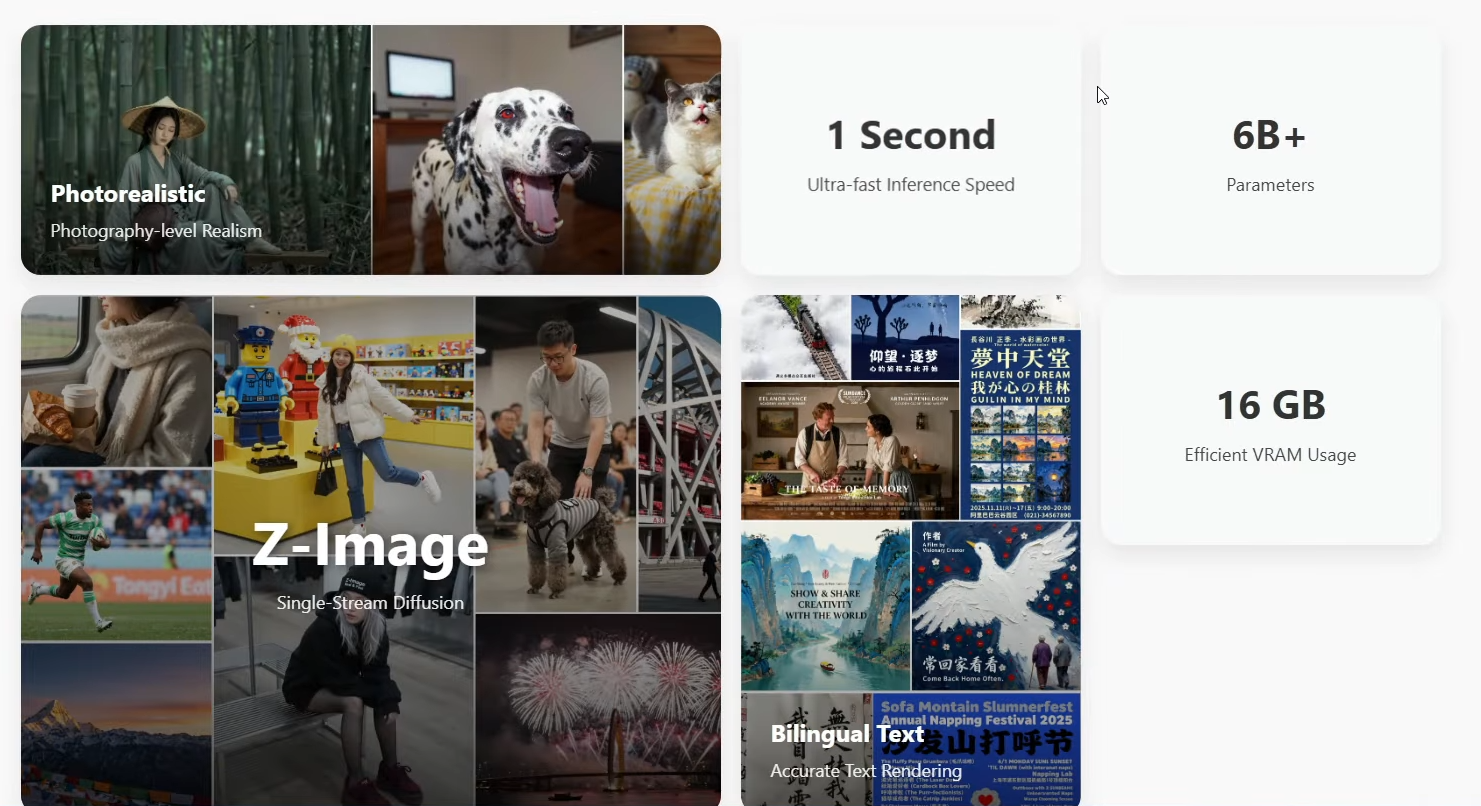
Recently, models for image generation have been appearing one after another, and today I am talking about one called Z-Image, developed by Alibaba. As soon as I explored it, I personally felt that this is an excellent model. I want to explain why I say that by walking you through every detail I observed while using it.
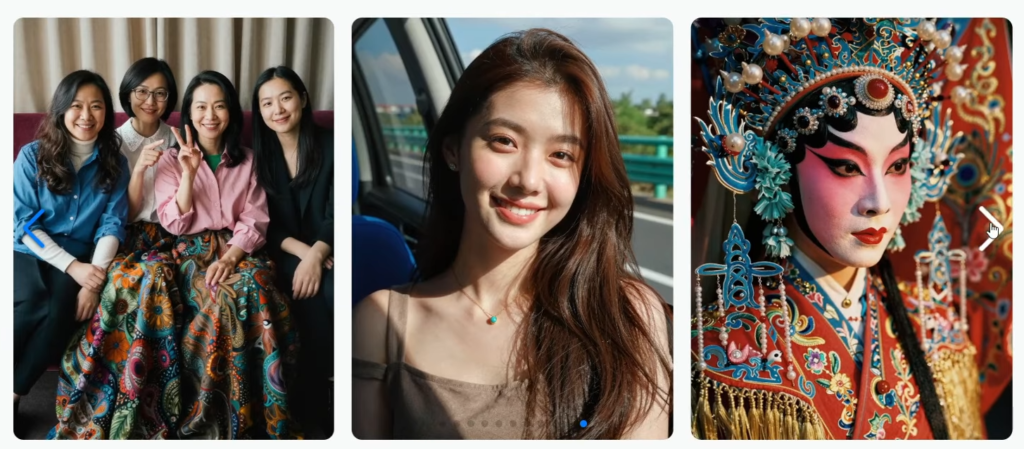
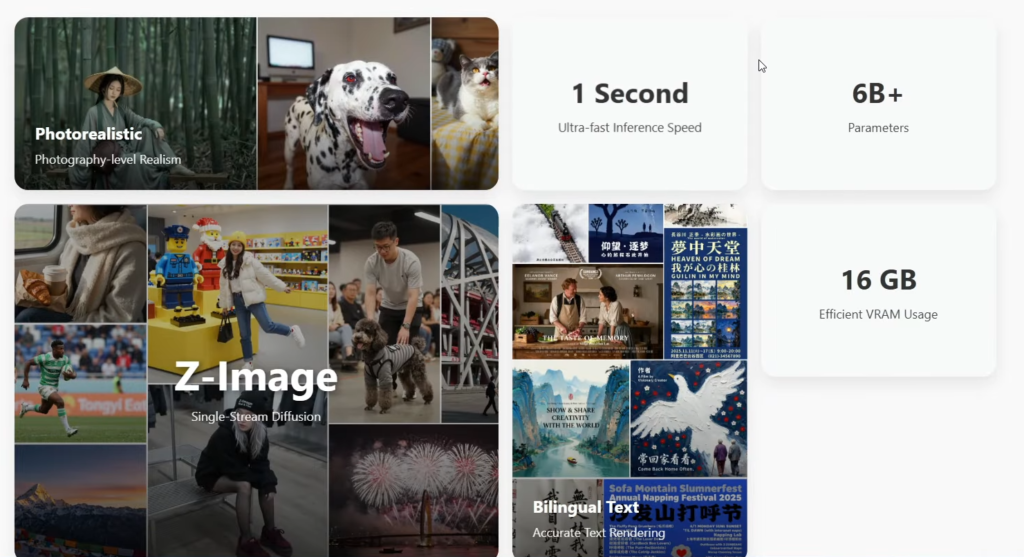
When I opened its official website, I immediately noticed several important keywords that stood out. These small clues helped me understand what makes this model interesting, fast, and suitable for everyday use.
What Is Z-Image?
Z-Image is a model from Alibaba designed for producing high-quality images with strong clarity. It is part of a larger suite of models, but the one I am focusing on in this article is Z-Image Turbo. There will also be an Edit version later, similar to the structure of Qwen Image and Qwen Image Edit.
Z-Image Turbo is lightweight, efficient, and produces strong results even with lower parameter counts. It supports high resolution, produces clear text inside images, and works well with JSON-style prompts.
Z-Image Overview
| Feature | Description |
|---|---|
| Parameters | 6 Billion (lightweight) |
| Another Model (Flux) | 32 Billion |
| Speed | Can create an image in about one second |
| VRAM Use | Around 16 GB |
| Text Clarity | Accurate text in Chinese & English |
| Suite Structure | Main model + Edit version (coming later) |
| Supported Platforms | ComfyUI, Running Hub |
| Components Needed | Text Encoder, Main Model, VAE |
| Recommended Text Encoder | Qwen3 4B |
| VAE | Same as Flux 1 |
| JSON Support | Yes |
| JSON Sensitivity | High sensitivity to double quotes |
Why I Feel This Model Is Impressive
When checking its description, I saw the number 6B, which means 6 billion parameters. To put that in perspective, Flux has 32 billion, so Z-Image is definitely a compact model. The site also highlighted the phrase “one second,” pointing out its speed.
Another keyword was 16G, referring to VRAM consumption. This already told me the model is designed in a way that does not overload hardware while still delivering strong output quality.
The platform also described photo-level realism, and after looking at the official examples, I immediately felt the output had strong clarity. It worked well on different subjects such as figures, scenery, and still life. Its bilingual text-rendering ability is also excellent.

Although it includes many other abilities, those were not part of my focus in this article. My main intent is to stay focused on Z-Image Turbo.
Using Z-Image Turbo in ComfyUI
We can already use this model inside ComfyUI. When I checked the ComfyUI official site, I scrolled to the examples section and found one labeled Z-Image. When opening it, I saw a detailed setup page.
On that page, I learned that I needed to download three components:
- The Text Encoder
- The Main Model
- The VAE
The Text Encoder used is Qwen3 4B, while the VAE is the same as Flux 1. Many people already have these two downloaded, so this part is convenient.
A workflow was also available, which can be dragged directly into ComfyUI. But there is one important requirement ComfyUI must be updated to the newest version.
Inside ComfyUI: How the Workflow Looks
After dragging the model into ComfyUI, the setup looks like this:
- Main Model: Z-Image Turbo BF16
- Text Encoder: Qwen3 4B
- VAE: Flux VAE
- Latent Image Node: Empty SD3 latent node
- Sampler: 9 steps
- CFG: 1.0
Once decoded, the model can produce an image.
During testing, I clearly noticed strong clarity. The texture of skin, balance of lighting, and overall structure appeared convincing. This helped me understand the model’s strong clarity.
Speed Test
When I clicked to generate, the first run took about 57 seconds, but this included model loading time.
The second run was faster because the model did not need to load again. It took around 23 seconds, including the display time.
I also noted that I was using a high resolution of 1280 × 1920, so achieving this result at such speed shows that the model works quickly.
Observations About Realism and Diversity
While testing, I checked many images with different subjects. One thing that stood out was that the figures in these images did not resemble each other. This is important because some models produce faces that look almost identical even though everything else is different.
With Z-Image Turbo, the diversity was noticeable. The structure of subjects, their expressions, their posture, and details all looked different each time.
Comparing with Qwen Image
In another section, I compared workflows for Qwen Image and Z-Image using JSON-formatted input.
Both models support JSON prompts, but I noticed that Qwen Image had limited diversity in faces. When generating images repeatedly, the output looked similar, especially in female faces.
Then I used the same prompt with Z-Image, and the faces were more varied.
However, the major difference appeared when looking at text inside the images.
When using JSON input, double quotes inside the prompt are treated as content by both models. This means extra text can appear inside the image.
What I noticed:
- Z-Image is more sensitive to double quotes
- Qwen Image is also sensitive but to a lesser degree
- When many double quotes exist, lots of unwanted text appears in the final output
This happened several times across different tests.
The Solution for Double Quote Sensitivity
Replace double quotes with single quotes in JSON prompts.
After replacing them:
- The extra text disappeared
- The image output became clean
- The quality stayed strong
Although replacing quotes does not completely remove the issue, it dramatically reduces unwanted text.
This is essential for anyone who uses JSON-style prompts with Z-Image.
Why JSON Format Still Matters
Even though Z-Image is sensitive to quotes, JSON-style prompts tend to generate extremely high-quality outputs.
My Summary of Z-Image Turbo
After going through the entire experience, here are the important points I confirmed:
- It is fast
- It has a compact parameter count
- It produces strong clarity
- It supports high resolution
- It handles JSON prompts
- It works smoothly in ComfyUI
- It provides strong diversity in human subjects
- It works well in both Chinese and English text creation
When you consider all these aspects together, it becomes clear that this model is fully capable for everyday use.
Large models like Flux 2 might have higher potential outputs, but their speed can be too slow for practical tasks. Because of that, Z-Image Turbo becomes a highly suitable option.
I concluded that this model is worth recommending.
How to Use Z-Image Turbo?
Step 1 — Update ComfyUI
Make sure ComfyUI is updated to the latest version.
Step 2 — Download Necessary Components
Download:
- Z-Image Turbo (main model)
- Qwen3 4B Text Encoder
- Flux VAE
Step 3 — Load Workflow
Drag the workflow provided in the example page or from Running Hub into ComfyUI.
Step 4 — Configure Settings
Use:
- 9 sampling steps
- CFG set to 1.0
- High resolution if needed
Step 5 — Fix JSON Prompt Issues
Replace all double quotes with single quotes in prompts.
Step 6 — Generate
Run the model.
The first load will be slower; the next runs will be faster.
Step 7 — Check Output Quality
Look at:
- Skin textures
- Lighting
- Text clarity
- Diversity of subjects
Key Features
- Lightweight 6B parameter size
- One-second speed claim
- 16 GB VRAM requirement
- Strong clarity and detailing
- Accurate bilingual text
- Works with multiple platforms
- High-resolution support
- JSON-prompt compatibility
- Better diversity in human subjects
- Very fast generation time
Z-Image FAQs:
1. How many parameters does Z-Image Turbo have?
It has 6 billion parameters.
2. Is it faster than larger models?
Yes, because the model size is smaller, the speed is higher during generation.
3. Does it support JSON prompts?
Yes, but double quotes must be replaced with single quotes to avoid unwanted text.
4. Does it produce clear text in English and Chinese?
Yes, it accurately writes text inside images based on the prompt.
5. Does the model support high resolution?
Yes, it can output high-resolution images directly.
6. Do the characters generated look repetitive?
No, the diversity is strong, and outputs do not resemble each other repeatedly.
7. What components are required in ComfyUI?
You need:
- Main Z-Image Turbo model
- Qwen3 4B Text Encoder
- Flux VAE
8. Is it suitable for daily use?
Yes, because it is fast, compact, and produces strong results.
Conclusion
After observing everything in detail, I strongly feel that Z-Image Turbo by Alibaba is a strong, fast, and efficient tool for creating high-clarity images. It does not require heavy hardware and still competes with much larger models in terms of quality.
Its speed, diversity, and compatibility with JSON-style prompts make it a reliable option for daily work. For these reasons, I genuinely recommend this model and find it more suitable than extremely large and slow models.
You can try Z-Image-Turbo Demo at https://zimageturbo.org/#demo